What Recording Technologies are available to faculty & staff?
UConn has made multiple recording technologies, spaces, and equipment available to faculty and staff. See the following list for available resources:
Kaltura
Kaltura is a cloud-based media capture, storage and hosting application. This application is integrated with HuskyCT, the University’s learning management system, and provides instructors with the capability to integrate videos into their courses as well as add a quiz to the video. In addition, students can create and upload videos for homework assignments. Instructors can upload media and record their screen and/or webcam. These features allow them to:
- Create video assignments;
- Increase active learning through guided lessons;
- Demonstrate concepts to help students better connect with material;
- Jump start discussions on course topics and concepts;
- Expand opportunities for critical thinking;
- Introduce themselves and their course to students before classes start; and
- Assess student learning with embedded quizzes.

PowerPoint
Some faculty prefer to record their content directly onto PowerPoint, if they have the newest version of PowerPoint. The file type must be PPTX, rather than PPT, or the audio will not save. Instructors like having the ability to record one slide at a time. Please note that these recordings should still be loaded into Kaltura before loading into HuskyCT because voiceover PowerPoint files tend to be very large. Uploading into the MP4 from PowerPoint also allows for the addition of captions.
Recording and Editing Spaces and Equipment
Lightboard Recording Studio
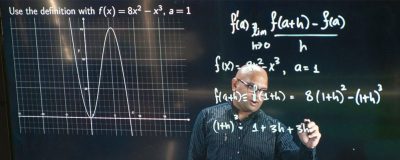
The lightboard is one of our lecture recording tools in a recording studio that allows instructors to face the camera while also writing on a transparent surface. By using glass instead of a whiteboard or Smartboard the instructor can interact with the content in new ways. It engages and captures students’ attention with eye contact and gestures. It’s ideal for STEM fields but appropriate for any discipline.
Best Practices
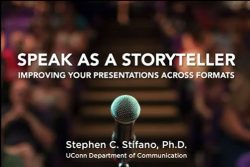
Speak as a Storyteller: Improve your presentations across formats
In this workshop, Dr. Steve Stifano (Department of Communication) goes over tips to engage best with your audience as a presenter.
This workshop focuses on three main principles:
- Narrative Storytelling
- Design & Slideshow Best Practices
- Everything in presenting is a conversation
Captioning and ADA Compliance
- All University employees are responsible for ensuring the content and media they create is accessible and compliant with ADA, Section 504, and University and State policies.
- Beginning with the premise that “bad captioning is worse than no captioning.” regardless of the captioning option selected, the faculty, as the content expert, will need to review and revise all captioning for accuracy.
- If notified by the Center for Students with Disabilities (CSD) that a student in the course needs an accommodation, CSD will work with the faculty to get the material captioned.
- If faculty or department would like to have material captioned, please note:
- For most courses, captioning of materials in a password protected area (HuskyCT) if not necessary unless an accommodation is required;
- For videos intended for just one semester, if no accommodation needed, captioning is not recommended; and
- Course design is an iterative process so if the video will likely be revised in the next semester or two, captioning is not recommended.
- If faculty still wish to have content captioned:
- A free captioning option is available to all faculty in Kaltura. Faculty should be advised that this does not meeting ADA standards so it is critical that faculty review and correct the captioning;
- Captioning is available via YouTube for videos posted on that platform;
- Faculty can utilize ITS’ captioning service; or
- Faculty can contact CETL’s EdTech department for other captioning services (only for non-expedited captioning)